A study timer with breaksStudy timer for Mac, iPhone and iPad
Pomo is a study timer that keeps the breaks for you. Twenty-five minutes on the problem set, five minutes off, a longer rest after four. Every session is entered in a record under the subject you were working on, and on the Mac the sites that eat afternoons stay shut while the display counts. Free, with no account.
Revision in sessions
Reading a chapter and working a problem set are different kinds of effort, and they tire in the same way: attention drifts long before the page is finished. A session of 25 minutes is short enough that the end stays in view and long enough to get through a section of a textbook, a page of proofs or a stack of flashcards. The five minutes between sessions are part of the method. Stand up, refill the glass, look out of the window. The next session starts fresher than the last one ended.
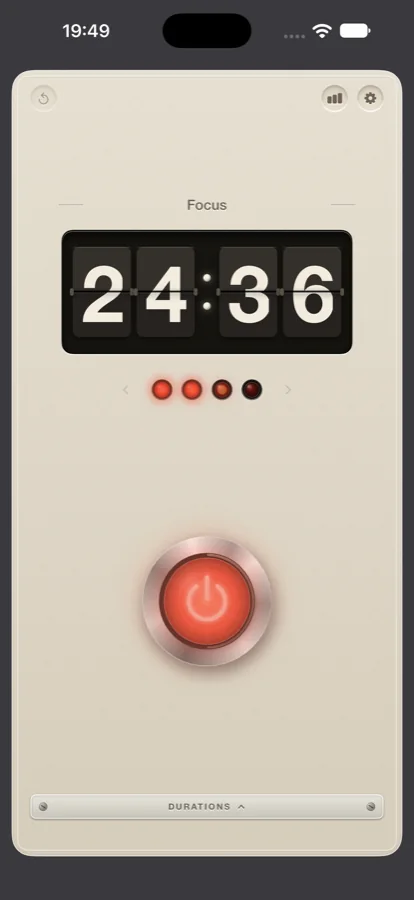
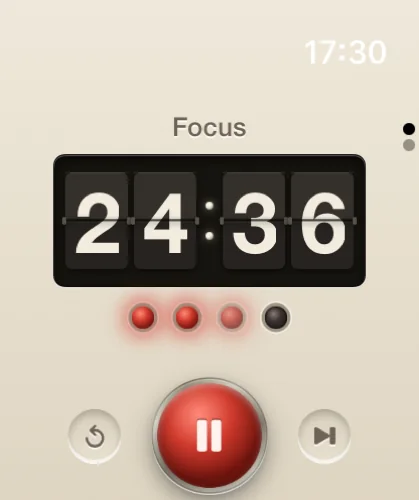
Pomo keeps the count. Press the button and the display counts down from 25:00. At zero the bell rings, a lamp comes on, and the display counts five minutes of rest. After the fourth lamp the rest is fifteen minutes. The lamps turn green while you rest, so a glance tells you which half of the cycle you are in. The method itself is described in the Pomodoro Technique leaflet.
Pomo keeps no task list. The subject on the nameplate and the record of hours are the whole of its bookkeeping; the reading list stays wherever you already keep it.
Setting it up for a study day
Three adjustments make Pomo fit a day of revision.
The durations
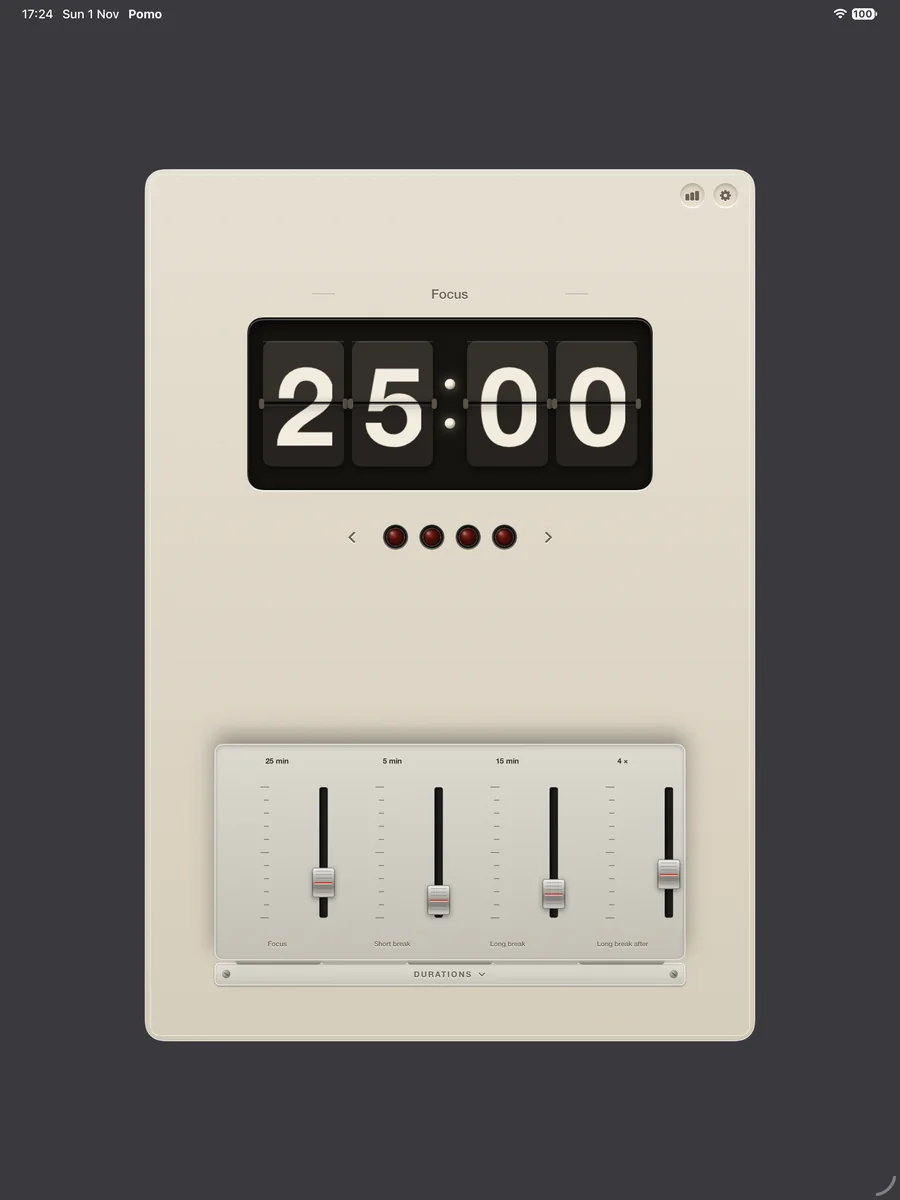
Behind the little door marked Durations are four faders: focus, short break, long break and the number of sessions in a cycle. The standard setting is 25, 5, 15 and 4, and for reading most people leave it there. For past papers, where the exercise is itself an hour long, set the focus fader to 50 and the short break to 10 so the timer matches the paper. Any whole number of minutes will do.
The nameplate
Above the display is a nameplate. Click it and type the subject: Organic chemistry, Civil procedure, German vocabulary. The name goes into the record with every session. Change it when you change subject, and the record keeps the two apart.
The record
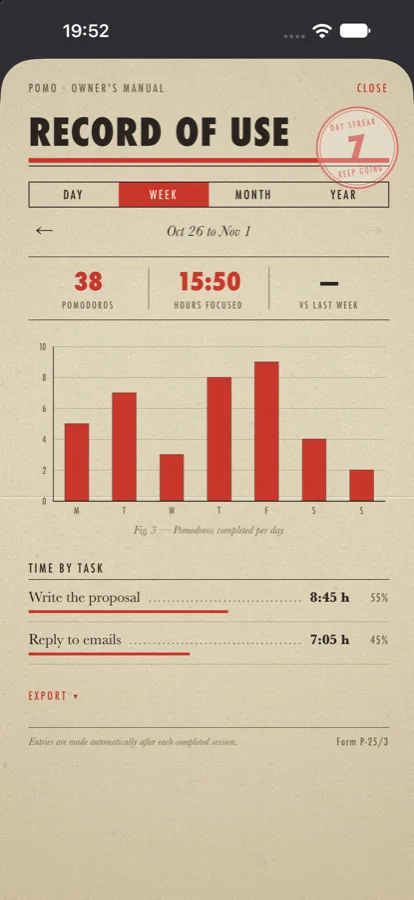
The chart icon opens the record of use. It shows sessions and focused minutes by day, week, month and year, the change against the period before, and the hours by name. At the end of a week it answers the question a revision timetable only asks: how many hours actually went to each subject. Save the record as CSV or text if you keep a spreadsheet, or transfer sessions to Apple Calendar, by hand or automatically, and see the day as blocks.
- Standard cycle25 min focus · 5 min break · 15 min long break after 4
- Past papers50 min focus · 10 min break, set on the faders
- RecordBy day, week, month, year; hours by subject
- ExportApple Calendar, CSV, text
Keeping the streak through a term
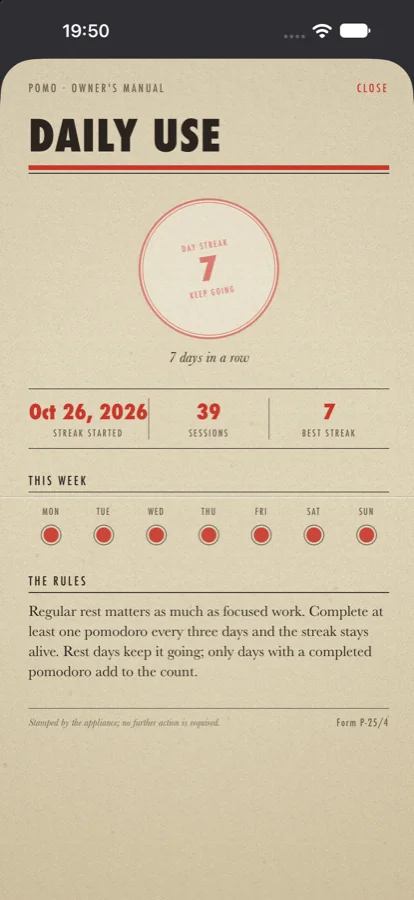
A term is long, and some days have no study in them. The daily use stamp is set accordingly. One finished session keeps the streak; it resets only after more than two days in a row without one. A weekend off does not cost you the stamp, and neither does a day of travel. The stamp grows on the days you show up.
On iPhone, the Home Screen widget shows the stamp with today's count and a short quote each morning, and a reminder can ring at the hour you choose. The countdown stays on the Lock Screen and in the Dynamic Island with a pause button, so the phone can lie locked on the desk for the whole session. On Apple Watch you can start, pause and skip from the wrist, and a tap on the wrist marks the end of an interval when the phone is in a bag.
The record syncs through iCloud. Sessions done on the iPad in the library and sessions done on the Mac at home land in the same record, under the same subjects. There is no account to make, and the app carries no ads and no analytics.
On a Mac in the library
On the Mac, Pomo lives in the menu bar. Out of the box there is no Dock icon; the countdown sits beside the clock, and the menu offers start, pause, skip and reset. The window comes up when you want the lamps and the button and goes away when you do not.
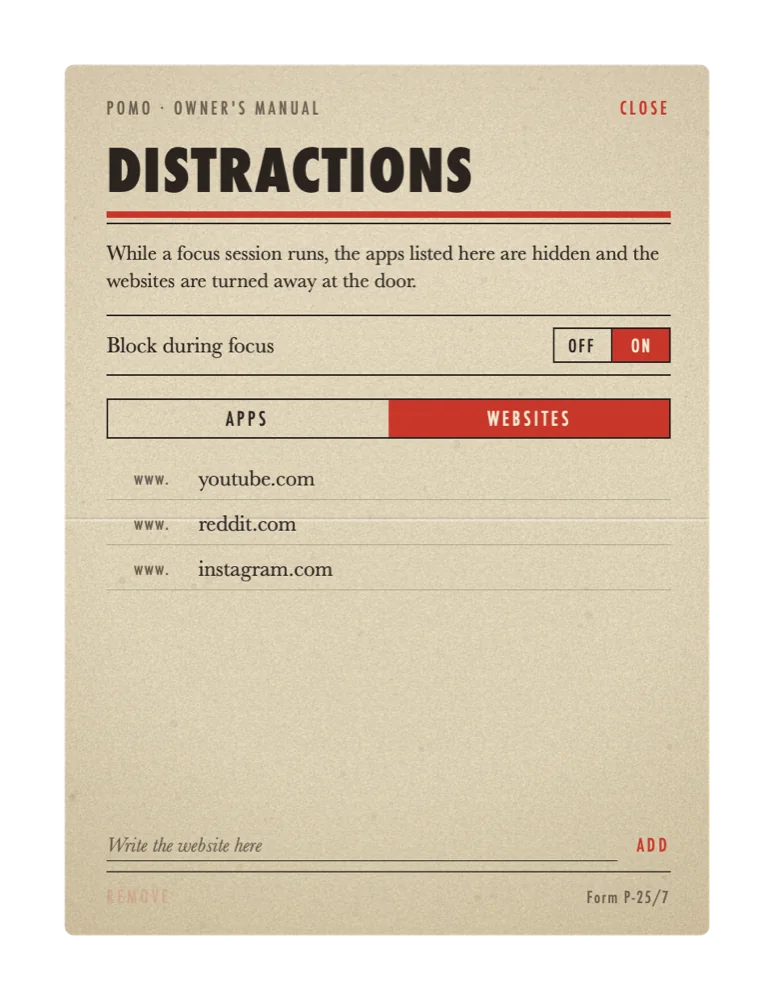
The shield icon opens the distractions list. Add the sites that eat afternoons: the video site, the forum, the two social networks. While a session runs, Pomo watches the front tab in Safari, Chrome, Arc, Brave, Edge, Vivaldi or Opera and turns a blocked site away. Add an app to the list and it is hidden for the length of the session. Off again the moment the break begins.
Two further switches suit a library afternoon. Commitment mode locks pause and reset until the session is done, for the days when you know you would reach for them. The fullscreen break takes over the screen for the five minutes so that you actually step away from it.
The blocker is a Mac feature. On iPhone and iPad, Pomo keeps the countdown in view and does not lock other apps. The blocker leaflet explains what it asks permission for and how it works.
Figures
Related leaflets: Pomo on iPhone and iPad, Pomo on Apple Watch, the split-flap display, and Pomo compared with Flow. Questions go to the service counter.