Pomo
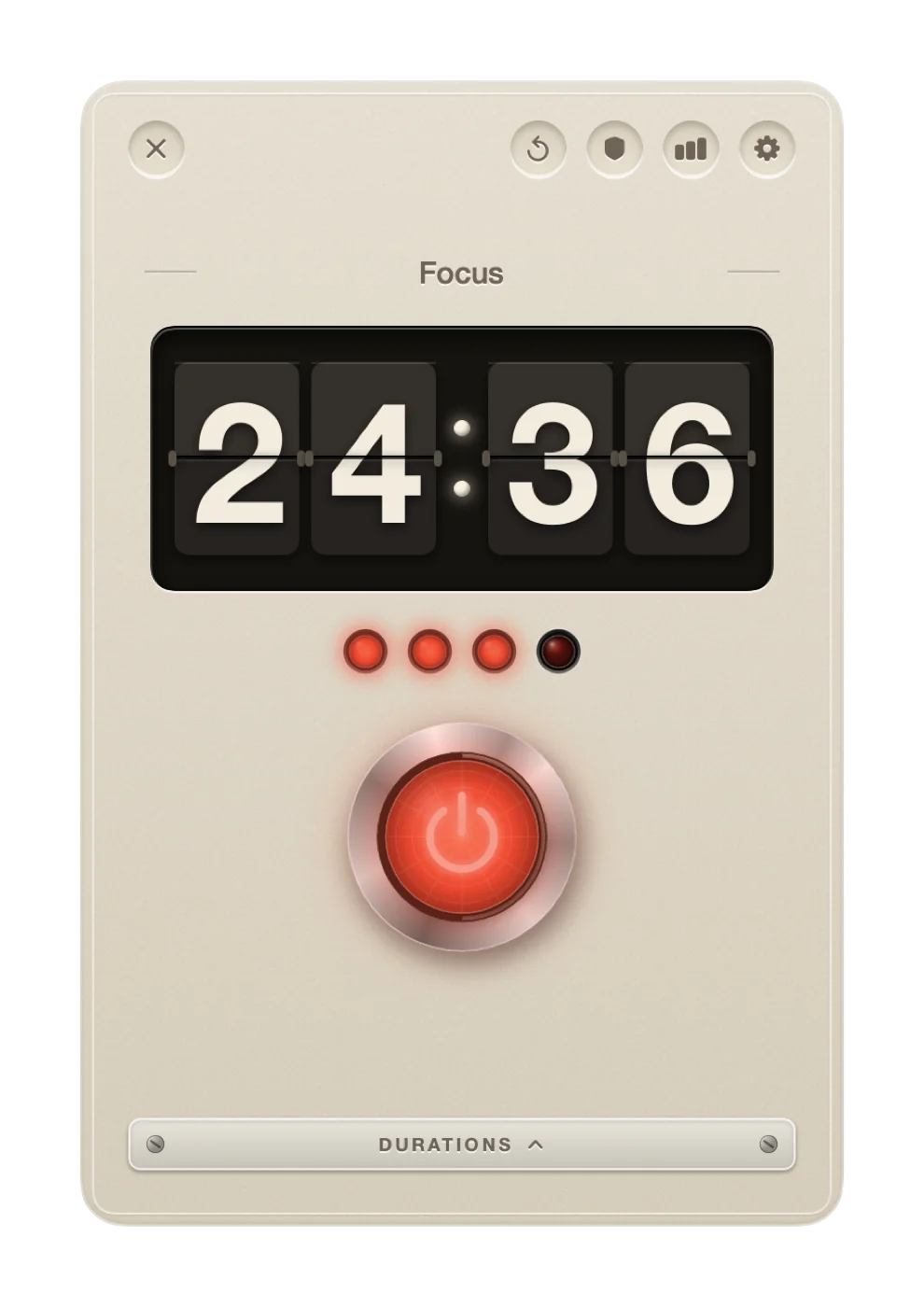
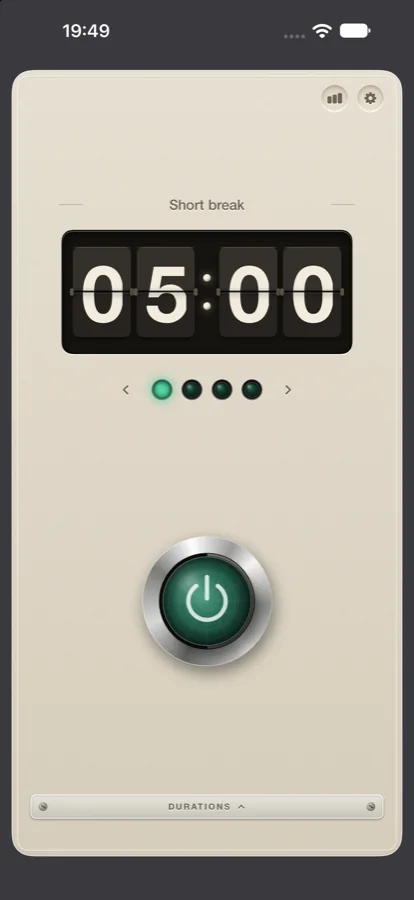
Pomo is a Pomodoro and study timer built like an appliance from another decade: a split-flap countdown, four lamps that come on as your cycle fills, and one red button. For Mac, iPhone, iPad and Apple Watch. Free, with no account and no ads.
How it works
Pomo follows the Pomodoro Technique, a popular method for keeping your attention on one thing at a time. In its standard form it has four simple steps.
- 1Choose a taskPick one thing from your list that you want to give your full attention.
- 2Start the timerPress the button. 25 minutes is long enough to get somewhere and short enough to stay sharp.
- 3Work on the taskCommit to it until the lamp comes on. Distractions can wait 25 minutes.
- 4Take a short breakEnjoy 5 minutes off. Stand up, stretch, drink some water.
↻ Repeat four times, then…
Take a long break. Every fourth break is a longer, more restoring one of 15 minutes. All four durations can be adjusted on the faders behind the little door marked Durations.
The appliance
One timer on every device, built from the same parts.
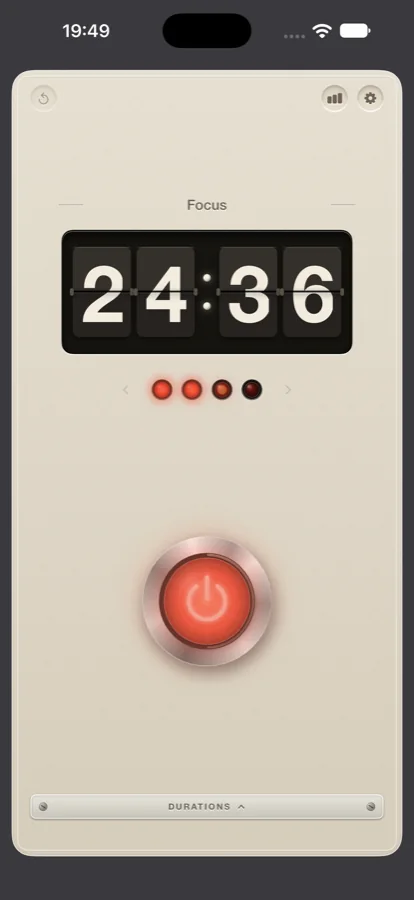
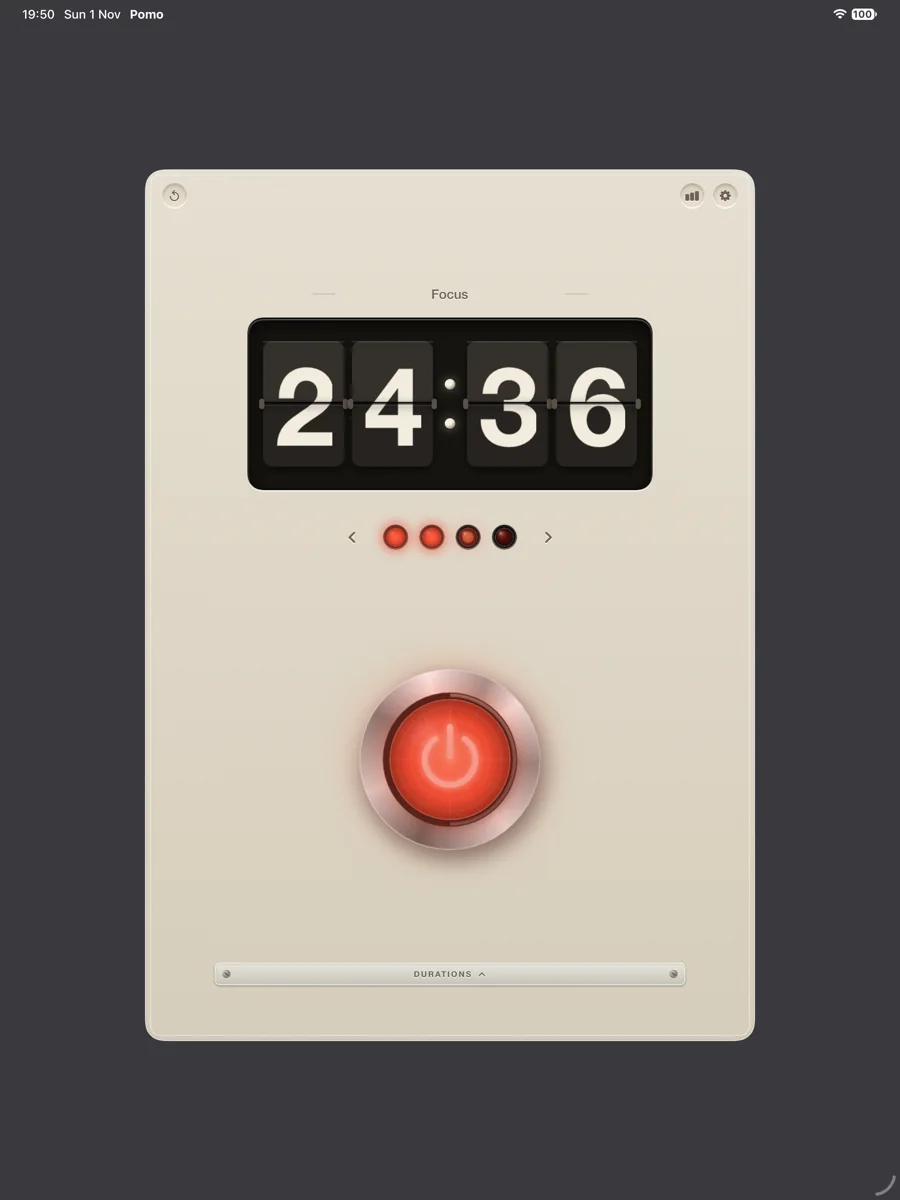
- The display. A split-flap countdown that flips one digit at a time.
- The lamps. One comes on for each session you complete. The one in progress breathes. They turn green while you rest.
- The button. A latching push button in a chrome ring. Press it and the lamp inside warms up like a filament.
- The door. Behind it, four faders for the focus, short break, long break and cycle length.
- On the Mac, the countdown also lives in the menu bar. Out of the box Pomo runs menu bar only, with no Dock icon.
- On iPhone, the countdown stays on the Lock Screen and in the Dynamic Island, with a pause button.
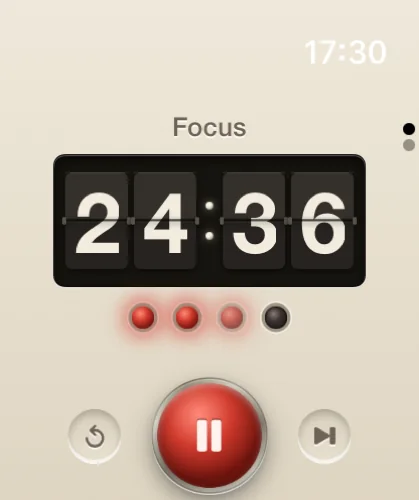
- On Apple Watch, start, pause and skip from your wrist, with a tap when an interval ends.
Record of use
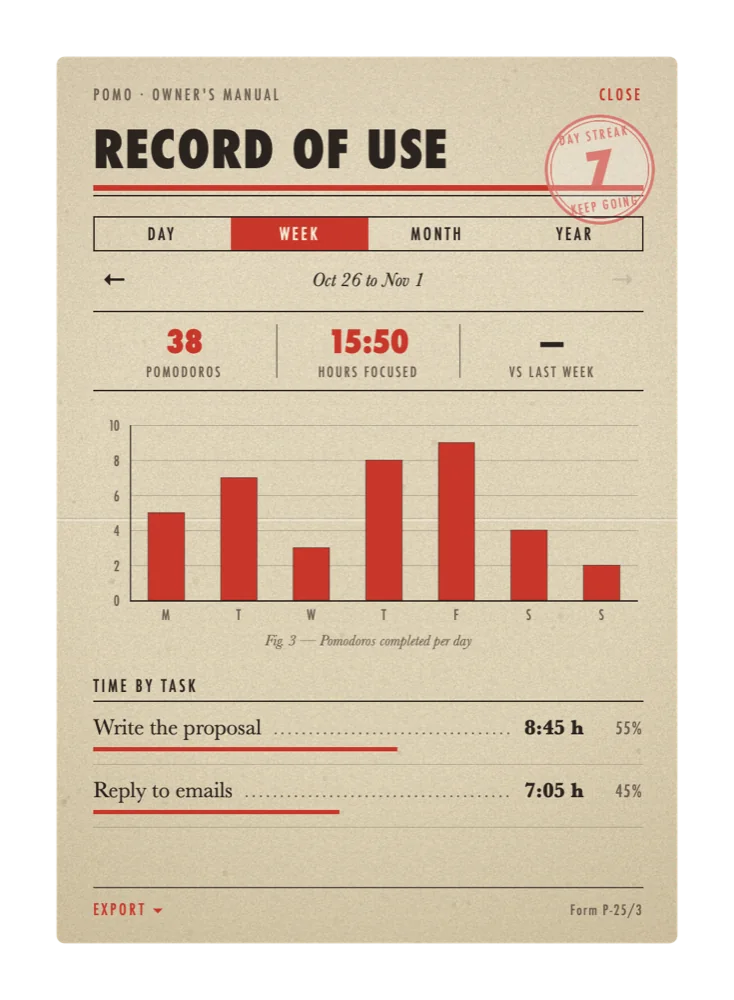
Every finished session is entered in the record for you. Read it by day, week, month or year, with the hours by task, and the change against the period before.
- Daily use stamp. One pomodoro every three days keeps your streak alive. Rest days count; the stamp only grows on days you show up.
- iCloud. The record syncs across your Mac, iPhone, iPad and Apple Watch. There is no account to make.
- To calendar. Transfer sessions to Apple Calendar by hand or automatically, or save the record as text and CSV.
- A word each morning. A Home Screen widget with a daily quote and your streak, and a reminder at the hour you choose.
Distractions kept out
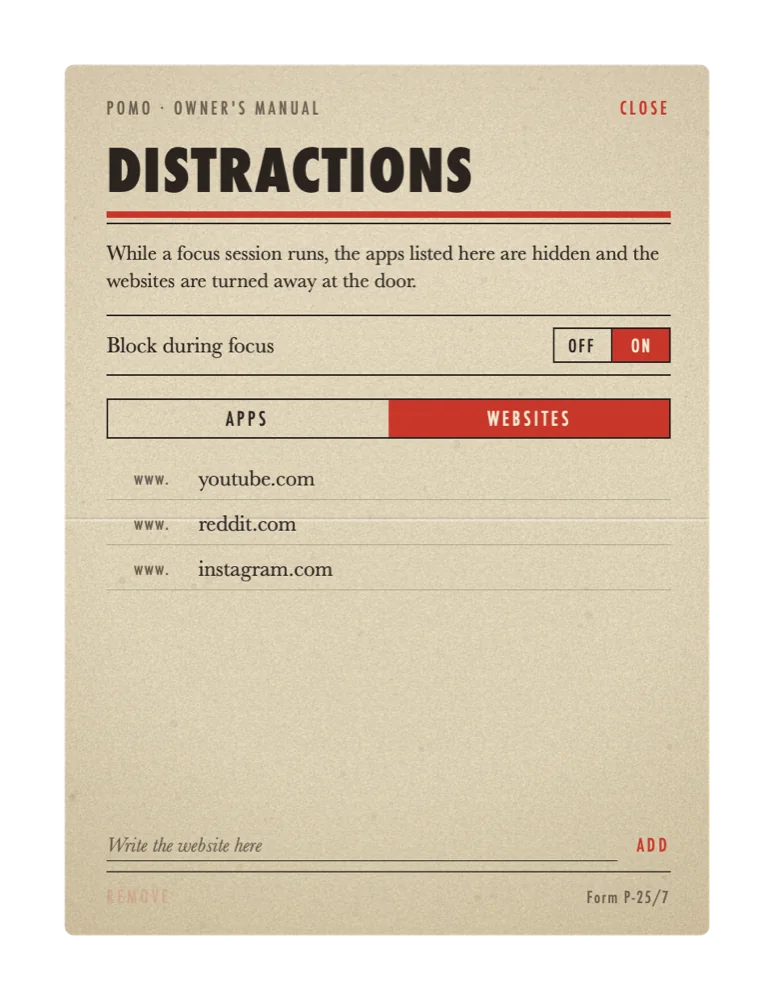
On the Mac, while a session runs, the apps on your list are hidden and the websites are turned away at the door. Off again the moment you rest.
- Any app on your Mac
- Any website, in Safari, Chrome, Arc, Brave, Edge, Vivaldi and Opera
- Commitment mode locks pause and reset until the session is done
- A fullscreen break, if you like, so you actually step away
Specifications
- PlatformsMac, iPhone, iPad, Apple Watch
- RequiresmacOS 15, iOS 17, iPadOS 17, watchOS 10 or later
- PriceFree. No account, no ads, no tracking.
- Standard cycle25 min focus · 5 min break · 15 min long break after 4
- SynciCloud, your own account only
- ExportApple Calendar, CSV, text
- Made bySmartHouse Technologies UG, Hamburg