Pomo on the MacPomodoro timer for Mac
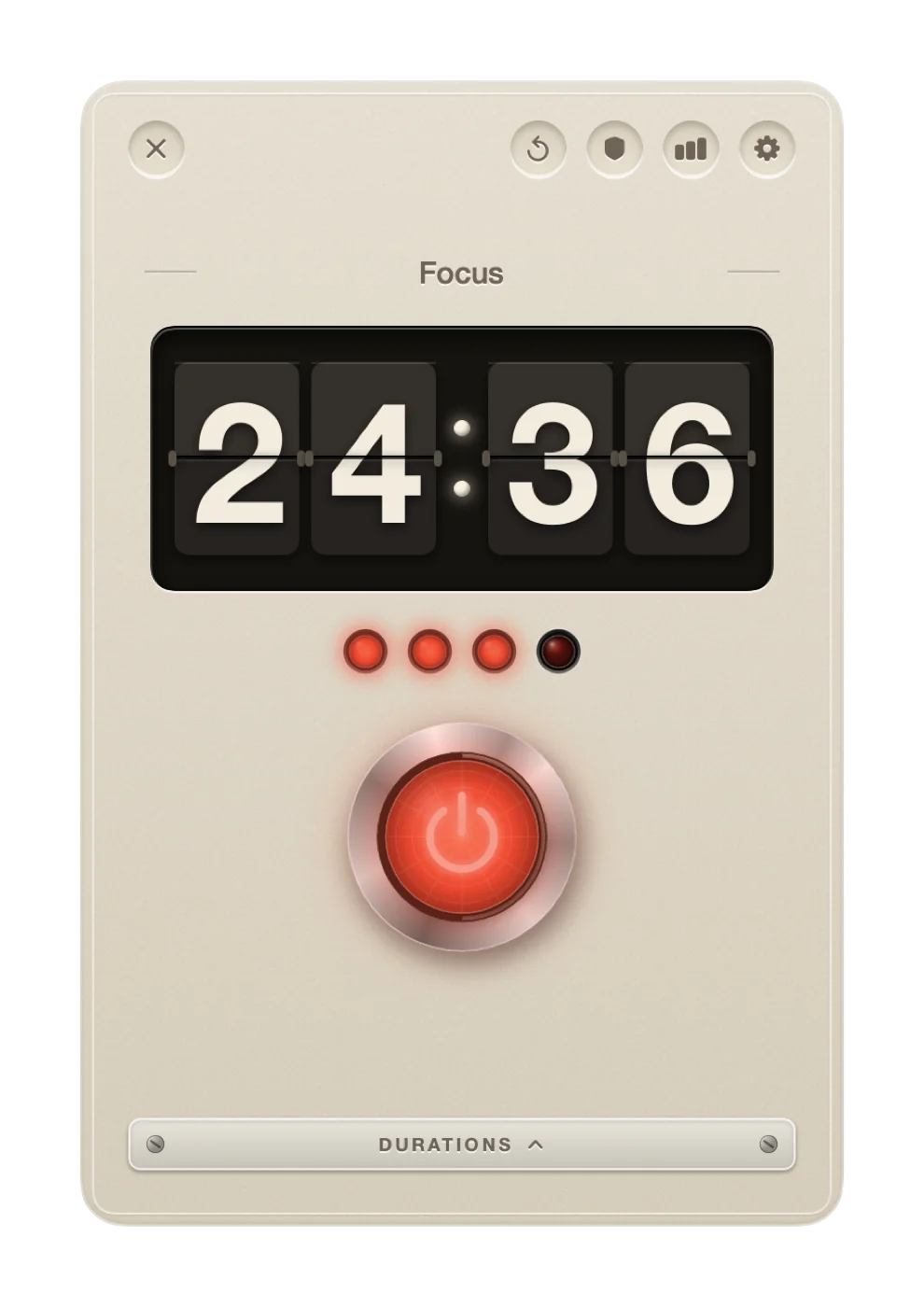
On the Mac, Pomo is a countdown in the menu bar and a window the size of an index card: a split-flap display, four lamps, one red button and a door marked Durations. Apps and websites on your list stay shut until the bell, and every finished session goes into the record. Free, with no account.
In the menu bar
A small tomato and the time remaining sit in the menu bar beside the clock. They count down whether the window is open or not, so the timer can be read from whatever app you are in.
Click the item and a menu drops down. The first line is the session title and the time left. Beneath it are Start or Pause, Reset and Skip, then Show timer, Blocker, Statistics and Settings, and Quit Pomodoro at the bottom. A session can be run from this menu alone, with the window never shown.
No Dock icon, by default
Out of the box the appliance runs menu bar only. The Dock and the ⌘-Tab switcher are left alone. If you would rather have an icon in the Dock, the switch is in the adjustments under This Mac, marked Menu bar only, no Dock icon. Turn it off and the icon appears at once.
The window
Show timer opens the window. The recessed cross at the top left hides it again, and the countdown carries on in the menu bar. Along the top edge sit the shield for the blocker, the chart for the record and the gear for the adjustments.
The appliance on a desk
Its parts, from the top down.
- The nameplate. An engraved strip above the display with the title of the session, Focus from the factory. Click it during a focus session to write your own, up to forty characters. The title goes into the record with the session.
- The display. A split-flap countdown that flips one digit at a time.
- The lamps. One for each session in the cycle, four from the factory. A lamp comes on for every session completed and the one in progress breathes. They turn green while you rest.
- The button. A latching push button in a chrome ring. Press it to start, press it again to pause; the lamp inside warms up like a filament while the timer runs. The space bar presses it too.
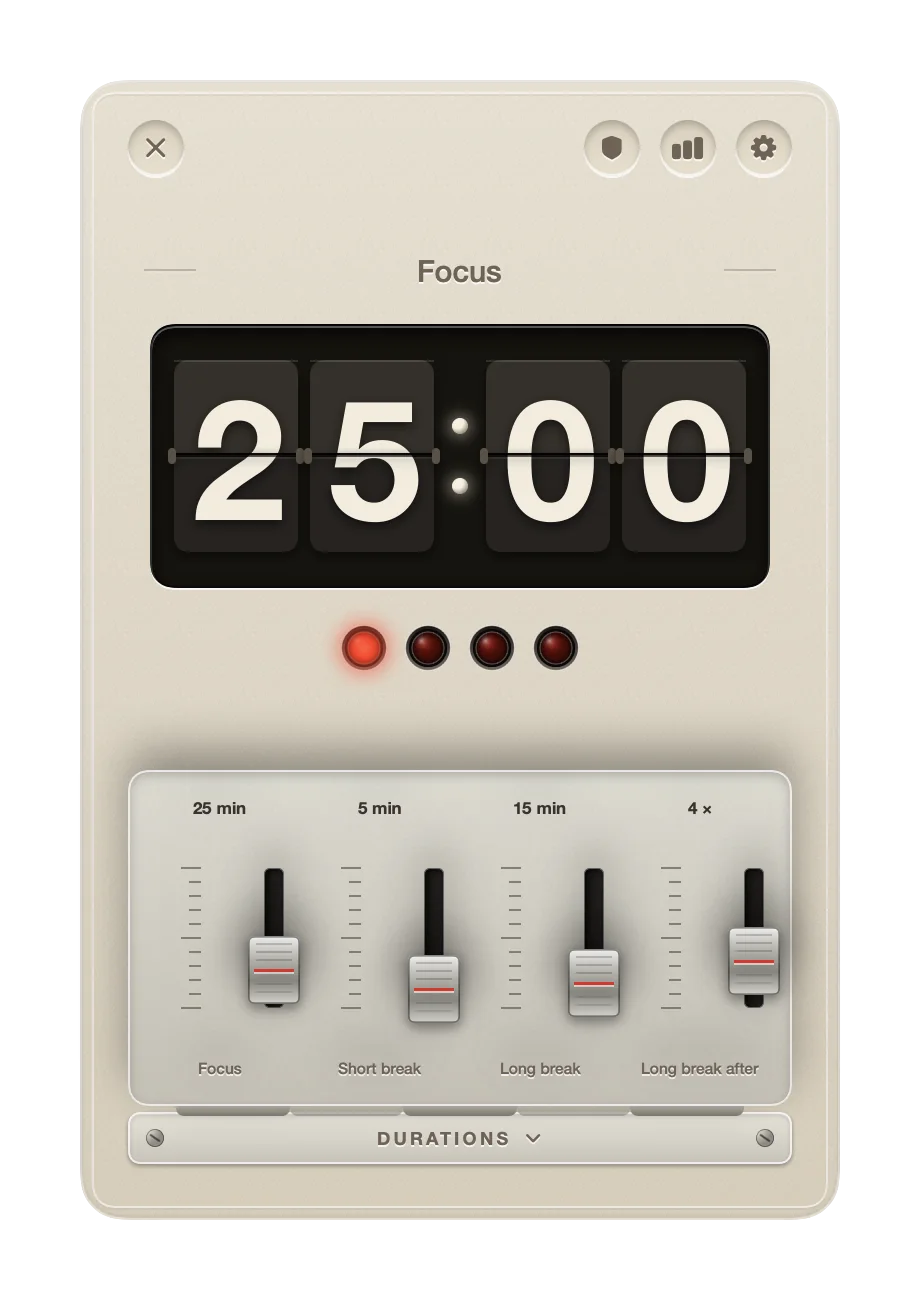
- The door. A fold-down lip marked Durations beneath the button. Open it and four faders swing up: Focus, from 1 to 90 minutes; Short break, 1 to 30; Long break, 5 to 60; and Long break after, from 2 to 8 sessions. The factory settings are 25, 5, 15 and 4.
The bell and the tick
When an interval ends, a bell rings and a notification is posted, Pomodoro complete or Break over. macOS asks permission for notifications on first launch. A metronome tick for focus sessions is in the adjustments under Sound, off from the factory, and the bell has its own switch beside it.
What starts by itself
From the factory, a break starts the moment a focus session ends, and the next focus session waits for the button. Both are switches under Flow, Start breaks automatically and Start focus automatically. With both on, the appliance runs the whole cycle by itself.
Distractions kept out
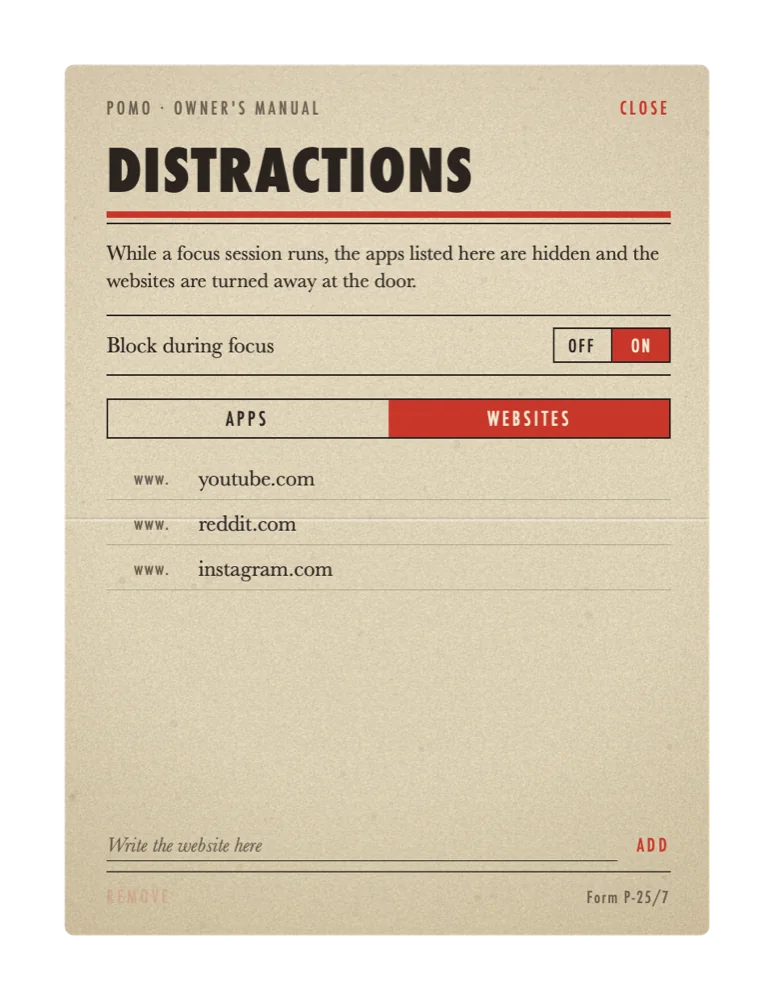
The shield on the timer window opens the distractions list. While a focus session runs, an app on the list is hidden the moment it comes to the front and the timer window takes its place, with a line on the display such as Mail is blocked until your break. A website on the list is turned away at the door: every two seconds Pomo asks the front browser for the address of its current tab, and a tab on a listed site is sent to a blank page. Safari, Chrome, Arc, Brave, Edge, Vivaldi and Opera are supported. When the break begins, hidden apps can be brought back and listed sites open again.
Two switches under Flow make the door harder to walk through. Commitment mode locks pause, reset and skip for the length of a focus session; the button and the menu bar item will take no such order until the bell. Fullscreen break covers the whole screen with the countdown until the break is over, so the five minutes are spent away from the desk. Setting the list, the permission macOS asks for and the limits are in the blocker leaflet.
The record of use
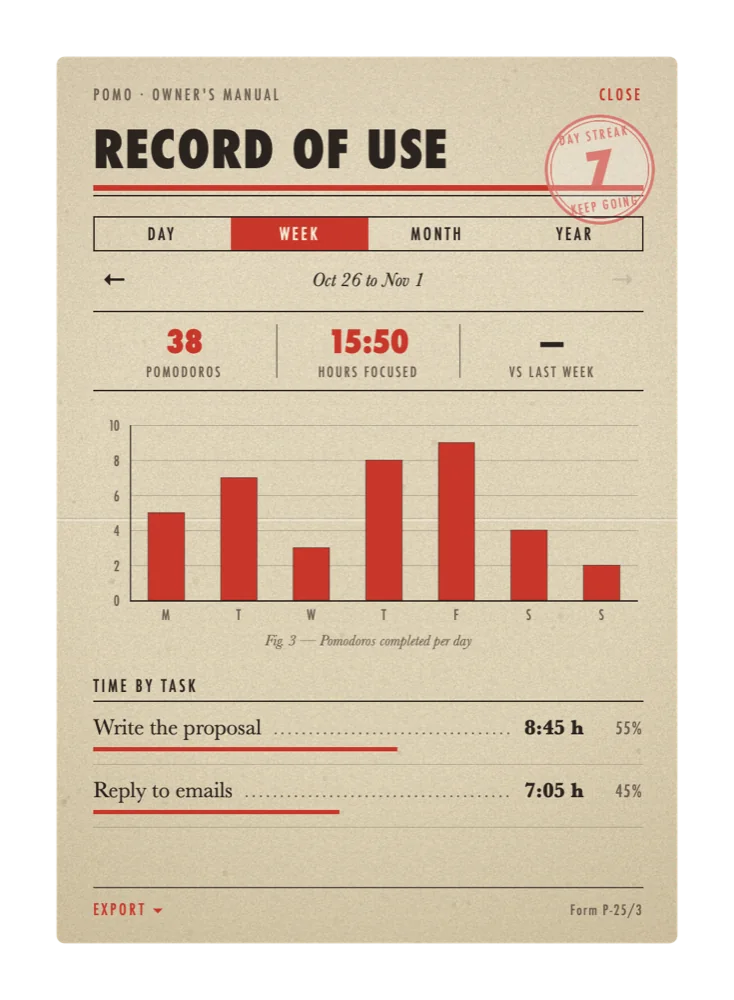
The chart on the timer window opens the record. Nothing in it has to be typed: a session is entered the moment the bell rings, with the title from the nameplate. Read it by day, week, month or year. Each page shows the number of pomodoros, the hours focused and the change against the period before, then the sessions as ink bars and the hours by task beneath them. The daily use stamp in the corner counts the days in a row; one finished pomodoro every three days keeps it alive.
One record across your devices
The record travels through your own iCloud, so the Mac, the iPhone, the iPad and the Watch show the same sessions and the same stamp. The switch is under This Mac, Sync statistics with iCloud, on from the factory. There is no account with us. The running countdown stays on the device where the button was pressed.
To Calendar, CSV or text
The Export menu at the foot of the record covers the period on view. Add to Calendar puts each session into an Apple Calendar of your choosing as an event under its title; macOS asks for calendar access the first time. Save as CSV writes one line per session with the date, start, end, minutes and title. Save as text groups them by day with a total. A switch under Calendar, Add finished sessions to Calendar, makes the transfer by itself from then on, into the calendar you last exported to. Files from other timers can be read in with the Import link next to Export: Pomofocus reports, Session exports, Toggl Track CSV, calendar files and plain spreadsheets, with sessions already in the record passed over.
Specifications
- RequiresmacOS 15 or later
- PriceFree. No account, no ads, no tracking.
- Runs asMenu bar app, Dock icon optional
- Standard cycle25 min focus · 5 min break · 15 min long break after 4, adjustable
- BlockerAny app; websites in Safari, Chrome, Arc, Brave, Edge, Vivaldi, Opera
- SynciCloud, your own account only
- ExportApple Calendar, CSV, text
- ImportPomo, Pomofocus, Session, Toggl Track, CSV, .ics
- DownloadMac App Store, awaiting review in November 2026
The other versions are described in the iPhone and iPad leaflet and the Apple Watch leaflet. The method itself is in the Pomodoro Technique leaflet, and questions are answered at the service counter.